
How to save recipes from websites
Share a recipe page from your browser to CookZone, and it saves the recipe from it: the ingredients, the steps and the photo.
On iPhone, tap the menu button next to the address in Safari, then “Share”. On Android, tap ⋮ in Chrome, then “Share…”. Pick CookZone and tap “Submit”.
Updated
Step by step
Only the first three steps look different on iPhone and Android.
-
Open the browser menu
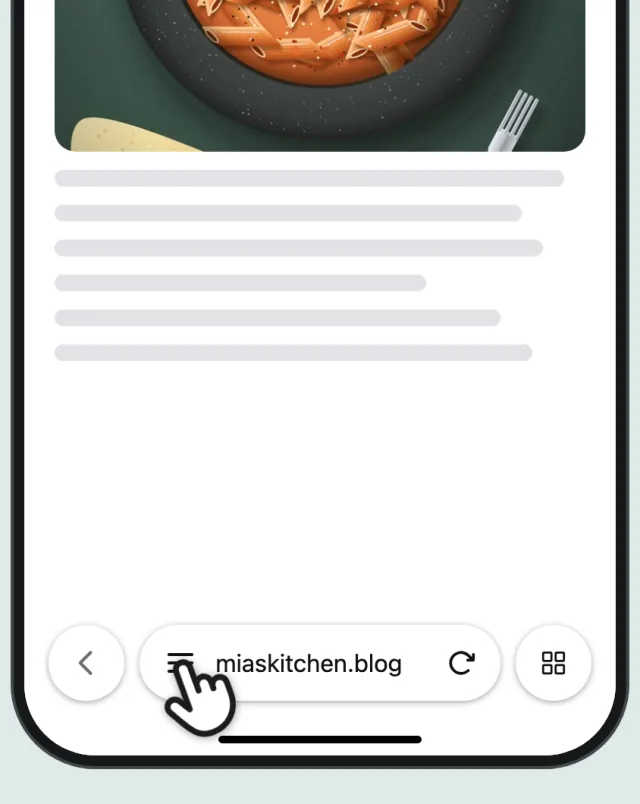
On iPhone, open the recipe in Safari and tap the menu button next to the address. On Android, open it in Chrome and tap ⋮ in the top right.
iPhone 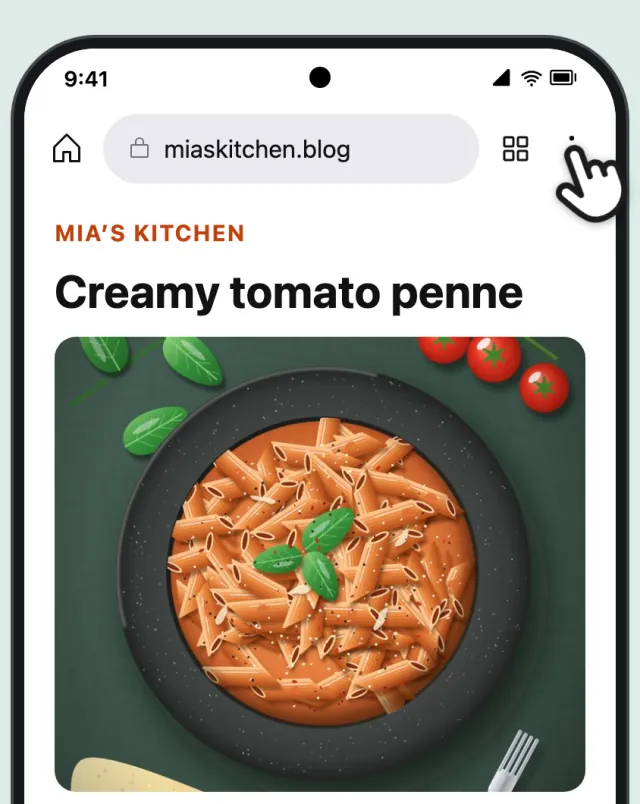
Android -
Tap “Share”
On iPhone, tap “Share”. On Android, tap “Share…”.
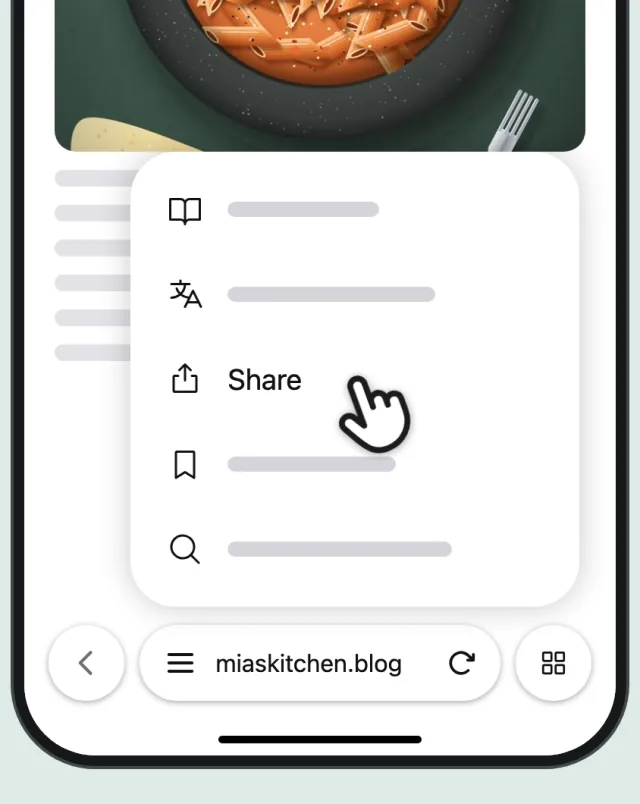
iPhone 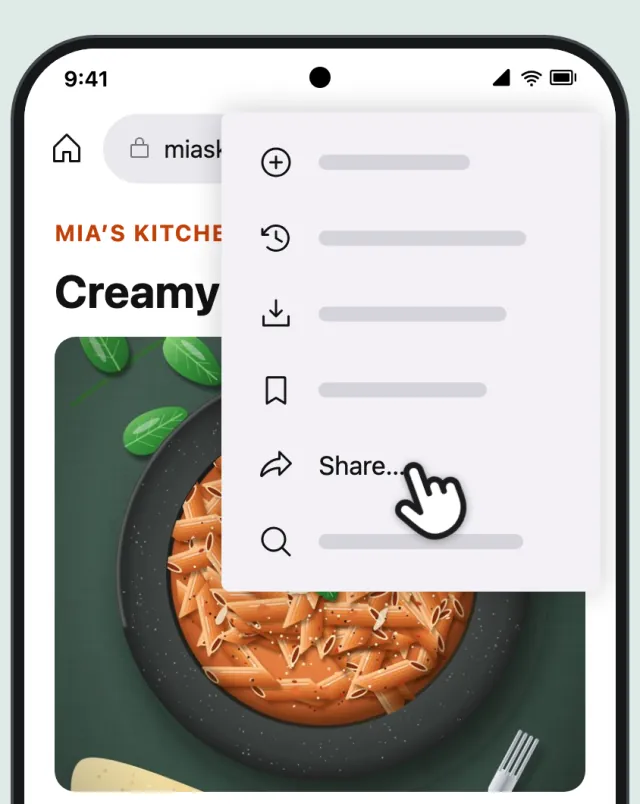
Android -
Pick CookZone
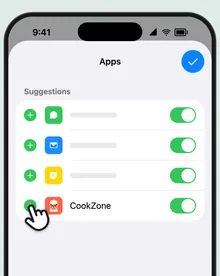
On iPhone, tap CookZone in the row of apps. Not there? Swipe to the end of the row and tap “More”. On Android, tap the CookZone icon.
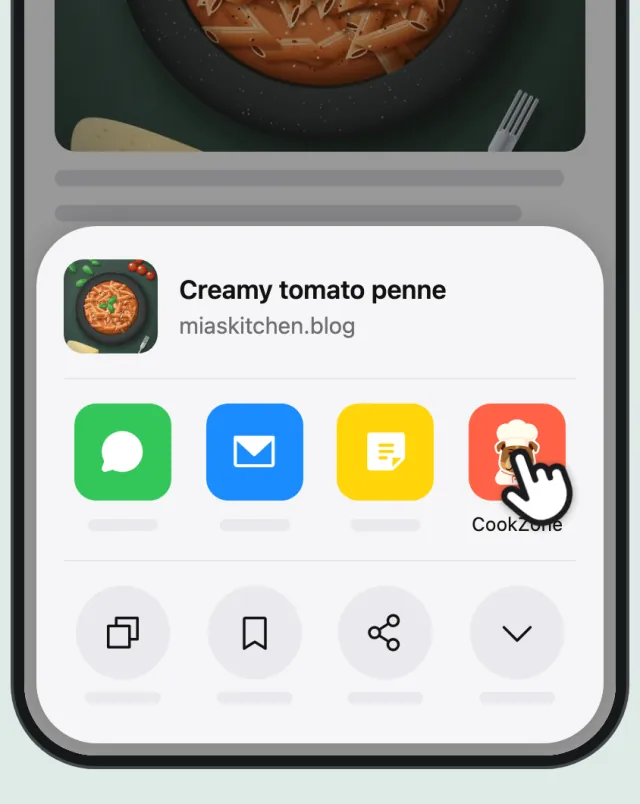
iPhone 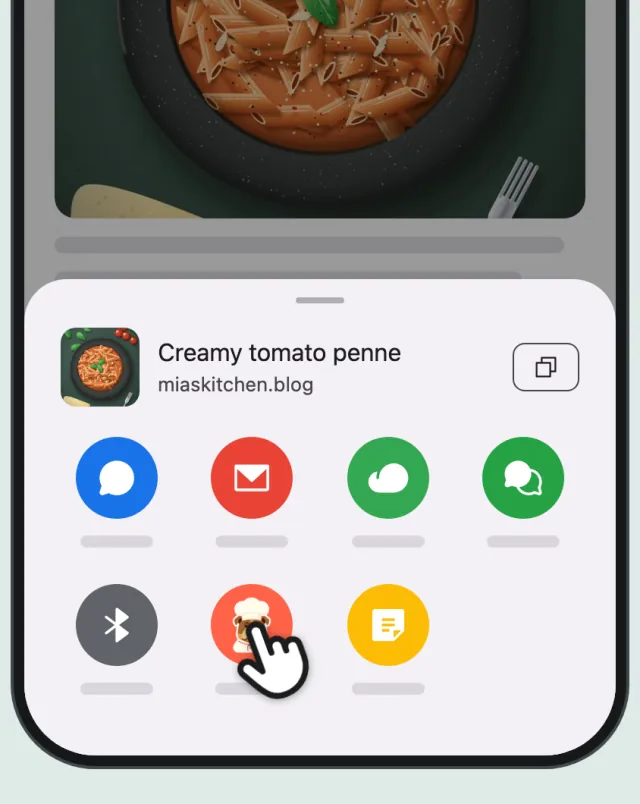
Android -
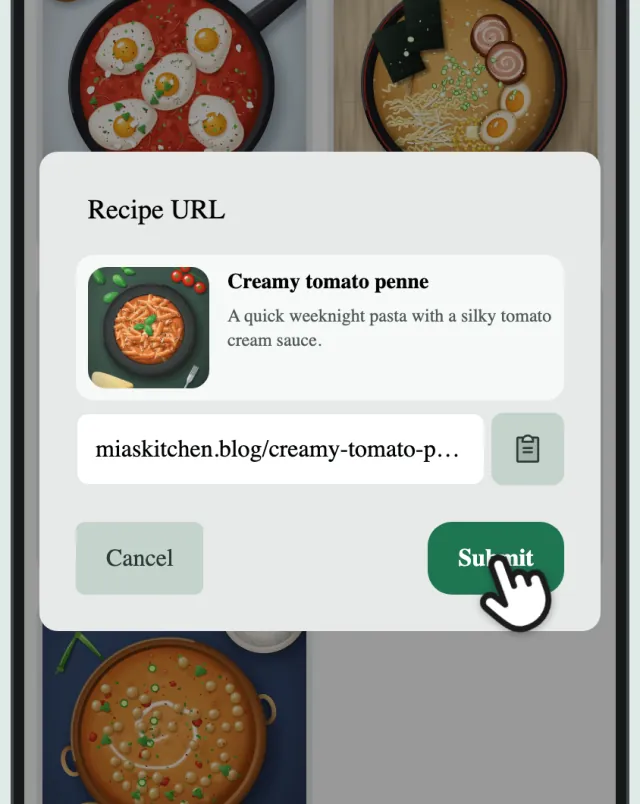
Tap “Submit”
CookZone opens with the link already filled in. Tap “Submit”.
-
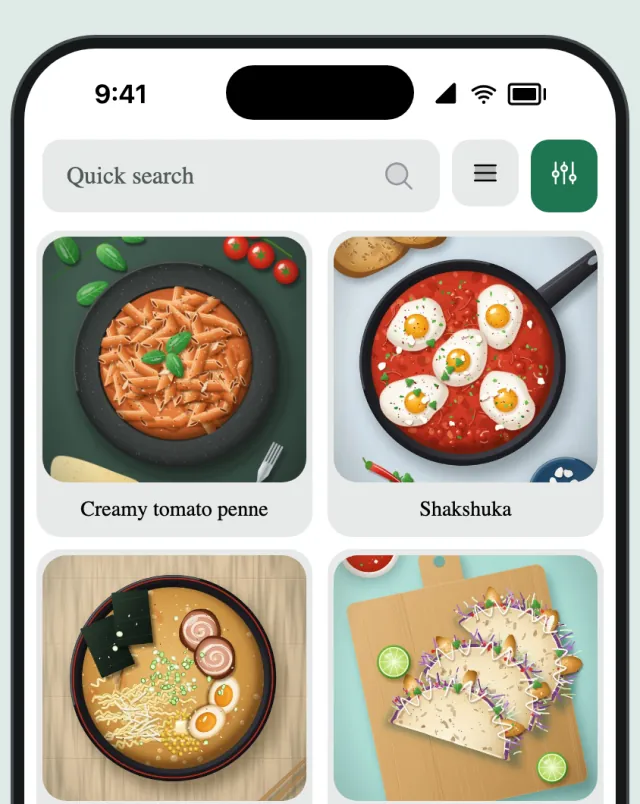
Done
A few seconds later the recipe is in your collection, with the ingredients, the steps and the photo from the page.
Or paste the link
Copy the page’s address instead. In CookZone, tap “Add” on the Recipes tab, choose “URL”, paste the link and tap “Submit”. No recipes yet? Tap “Paste a link” instead.